
6.5 KiB
Running a basic Python script in SQL Server big data cluster
Contents
About this sample
Before you begin
Run this sample
Sample details
Related links
About this sample
This is a sample Python app, which shows how to run a Python script in SQL Server big data cluster. This sample creates an app that adds two whole numbers and returns the result. The code for this sample is in add.py. The inputs and outputs are shown below.
Inputs
| Parameter | Description |
|---|---|
x |
The first whole number to add |
y |
The second whole number to add |
Outputs
| Parameter | Description |
|---|---|
result |
The result of adding x and y |
Before you begin
To run this sample, you need the following prerequisites.
Software prerequisites:
- SQL Server big data cluster CTP 2.3 or later.
mssqlctl. Refer to installing mssqlctl document on setting up themssqlctland connecting to a SQL Server 2019 big data cluster.
Run this sample
-
Clone or download this sample on your computer.
-
Log in to the SQL Server big data cluster using the command below using the IP address of the
endpoint-service-proxyin your cluster. If you are not familiar withmssqltctlyou can refer to the documentation and then return to this sample.mssqlctl login -e https://<ip-address-of-endpoint-service-proxy>:30777 -u <user-name> -p <password> -
Deploy the application by running the following command, specifying the folder where your
spec.yamlandadd.pyfiles are located:mssqlctl app create --spec ./addpy -
Check the deployment by running the following command:
mssqlctl app list -n addpy -v [version]Once the app is listed as
Readyyou can continue to the next step. -
Test the app by running the following command:
mssqlctl app run -n addpy -v [version] --input x=3,y=5You should get output like the example below. The result of adding 3+5 are returned as
result.{ "changedFiles": [], "consoleOutput": "", "errorMessage": "", "outputFiles": {}, "outputParameters": { "result": 8 }, "success": true } -
Any app you create is also accessible using a RESTful web service that is Swagger compliant. You can get the endpoint for the web service by running:
mssqlctl app describe --name addpy --version [version]This will return an output much like the following:
{
   "input_param_defs": [
     {
       "name": "x",
       "type": "int"
     },
     {
       "name": "y",
       "type": "int"
     }
   ],
   "links": {
     "app": "https://[IP]:[PORT]/api/app/addpy/[version]",
     "swagger": "https://[IP]:[PORT]/api/app/addpy/[version]/swagger.json"
   },
   "name": "addpy",
   "output_param_defs": [
     {
       "name": "result",
       "type": "int"
     }
   ],
   "state": "Ready",
   "version": "[version]"
 }
Note the IP address and the port number in this output. Open the following URL in your browser:
https://[IP]:[PORT]/api/docs/swagger.json. You will have to log in with the same credentials you used formssqlctl login. The contents of theswagger.jsonyou can paste into Swagger Editor to understand what methods are available: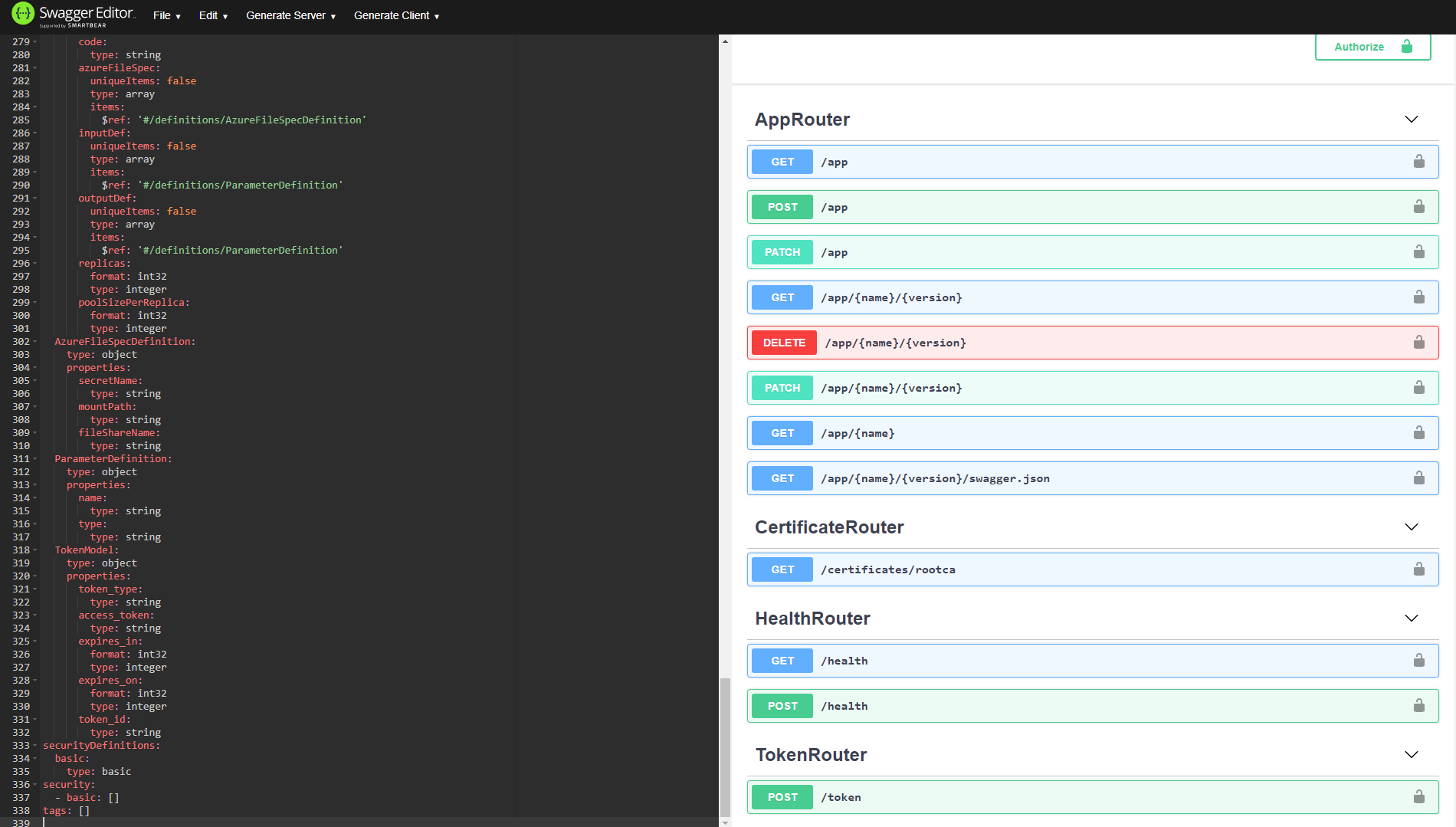
Notice the
appGET method as well as thetokenPOST method. Since the authentication for apps uses JWT tokens you will need to get a token my using your favorite tool to make a POST call to thetokenmethod. Here is an example of how to do just that in Postman:
The result of this request will give you an
access_token, which you will need to call the URL to run the app.Optional: If you want, you can open the URL for the
swaggerthat was returned when you ranmssqlctl app describe --name addpy --version [version]in your browser. You will have to log in with the same credentials you used formssqlctl login. The contents of theswagger.jsonyou can paste into Swagger Editor. You will see that the web service exposes therunmethod.You can use your favorite tool to call the
runmethod (https://[IP]:30778/api/app/addpy/[version]/run), passing in the parameters in the body of your POST request as json. In this example we will use Postman. Before making the call, you will need to set theAuthorizationtoBearer Tokenand paste in the token you retrieved earlier. This will set a header on your request. See the screenshot below. Next, in the requests body, pass in the parameters to the app you are calling and set the
 content-typetoapplication/json: When you send the request, you will get the same output as you did when you ran the app through
 mssqlctl app run: You have now successfully called the app through the web service!
 -
You can clean up the sample by running the following commands:
# delete app
mssqlctl app delete --name addpy --version [version]


Sample details
Please refer to add.py for the code for this sample.
Spec file
Here is the spec file for this application. As you can see the sample uses the Python runtime and calls the add method in the add.py file, accepting two integer inputs named x and y and returning an integer output named result.
name: addpy
version: v1
runtime: Python
src: ./add.py
entrypoint: add
replicas: 1
poolsize: 1
inputs:
  x: int
  y: int
output:
  result: int
Related Links
For more information, see these articles:
How to deploy and app on SQL Server 2019 big data cluster (preview)