
Contoso Clinic Demo Application
Sample application with database that showcases security features of SQL Server 2016.
About this sample
- Applies to: SQL Server 2016
- Programming Language: .NET C#, T-SQL
- Authors: Jakub Szymaszek [jaszymas-MSFT]
This project has adopted the Microsoft Open Source Code of Conduct. For more information see the Code of Conduct FAQ or contact opencode@microsoft.com with any additional questions or comments.
Contents
- Prerequisites
- Setup
- Set up the Demo Database
- Modify the Sample Application
- SQL 2016 Security Features in this demo
- Always Encrypted
- Row Level Security
- Dynamic Data Masking
- Application Notes
Prerequisites
- Visual Studio 2015 (or newer)
- SQL Server 2016
- SQL Server Management Studio
Setup
Set up the Demo Database
- Clone/Download the repository
- Import the Clinic database
- Open SSMS and connect to your SQL Server 2016 instance
- In SSMS, right-click on Databases in Object Explorer and select Import Data-tier Application....
- Locate your copy of the bacpac file, located in the /setup folder.
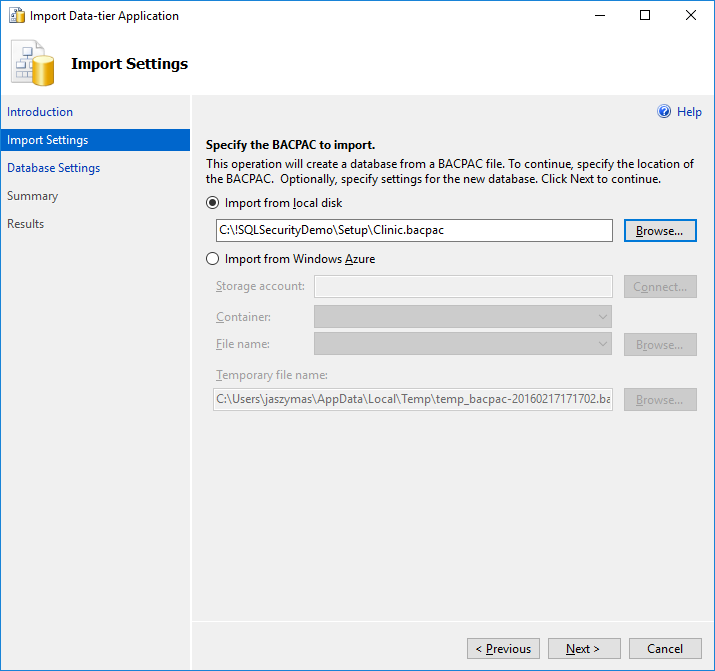
- Complete the steps of the wizard.
- While connected to your database (master) via SSMS, execute setup/Create-Application-Login.sql link.
- Before running the script, create a password for the
ContosoClinicApplicaationuser. - This script creates a login and user, assigns
datareaderanddatawriterpermissions, and gives several Always Encrypted specific permissions to theContosoClinicApplicationuser
- Before running the script, create a password for the

Modify and Set up the Sample Application Project
-
Start Visual Studio and open the Contoso Application solution file- located in /src.
-
Modify the connection string in the demo web app.
- Using Solution Explorer, locate and open the web.config file under the ContosoClinic project.
- Look for the line that looks like this:
<connectionStrings> <add name="DefaultConnection" connectionString="Data Source=youserver;Initial Catalog=Clinic; User ID=ContosoClinicApplication;Password=yourpassword" providerName="System.Data.SqlClient" /> <!-- To enable Always Encrypted, add the following to the connection string: Column Encryption Setting=Enabled --> </connectionStrings>- Update the value of the Data Source key word in the database connection string to denote your server
- Make sure the password for your application users is correct (matches the password that you configured earlier)
- Make sure the Initial Catalog value is set to Clinic
- Save the file
-
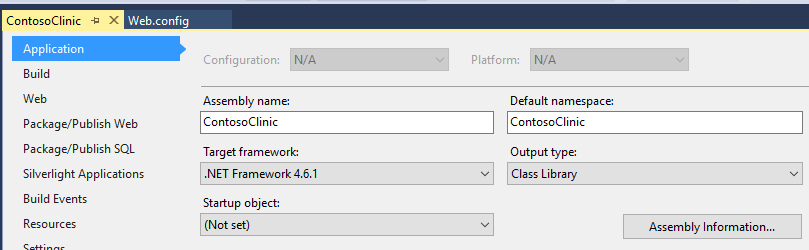
Make sure the .NET Framework 4.6.1 or higher is configured as the target .NET Framework for your project.
- Right click on your project in Solution Explorer and select Properties
- Verify the value of the Target framework property is correct (change it, if necessary)
-
Test the Demo Setup
- Run the ContosoClinic application from Visual Studio (by hitting F5 OR select Debug > Start Debugging). This will compile the solution and open the application in your default web browser.
- Click on the Patients tab. You should see a list of patients.
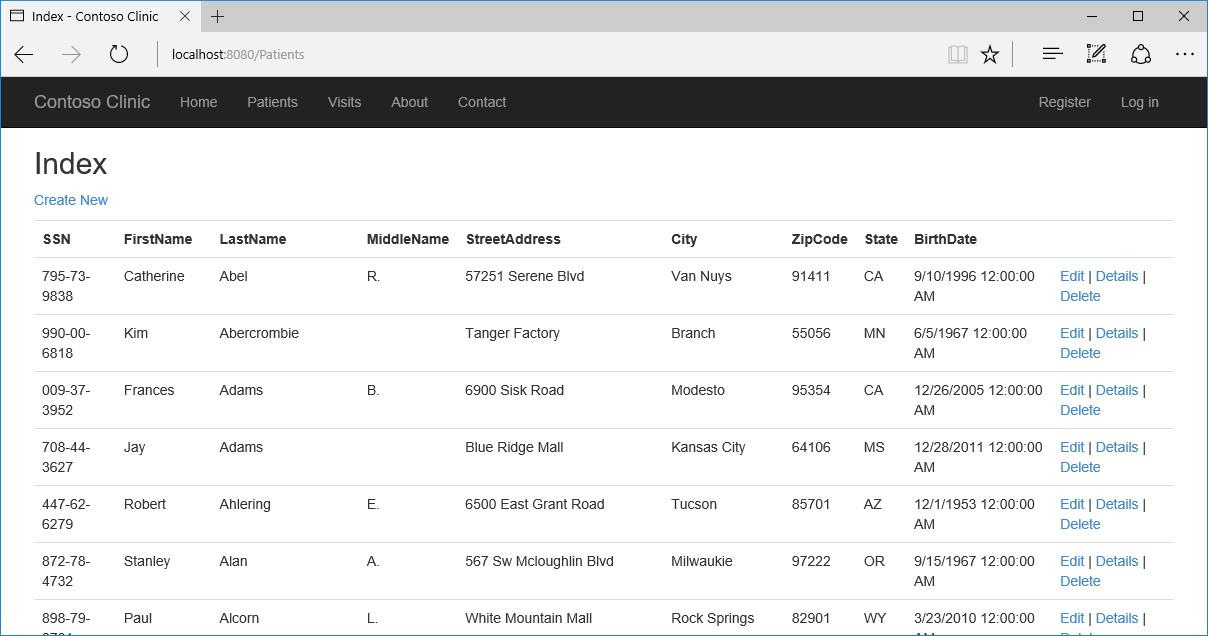
- Click Edit for one of the patients, change patient's SSN and click Save. The updated SSN should show up in the list of patients.
- You are now ready to demo the security features described below.


SQL 2016 Security Features in this Demo
Always Encrypted
Enable Always Encrypted
- Connect to your database using SSMS:
- For more information on using SSMS to connect to a Database, click here
- Encrypt Sensitive Data Columns using the Column Encryption Wizard
- Right click on the Patients table in the Clinic database and select Encrypt Columns...
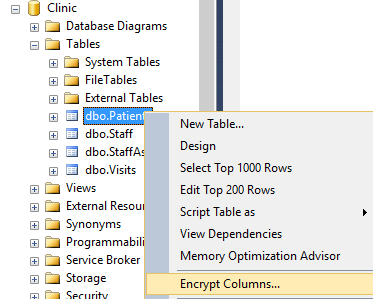
- The Column Encryption wizard will open. Click Next.
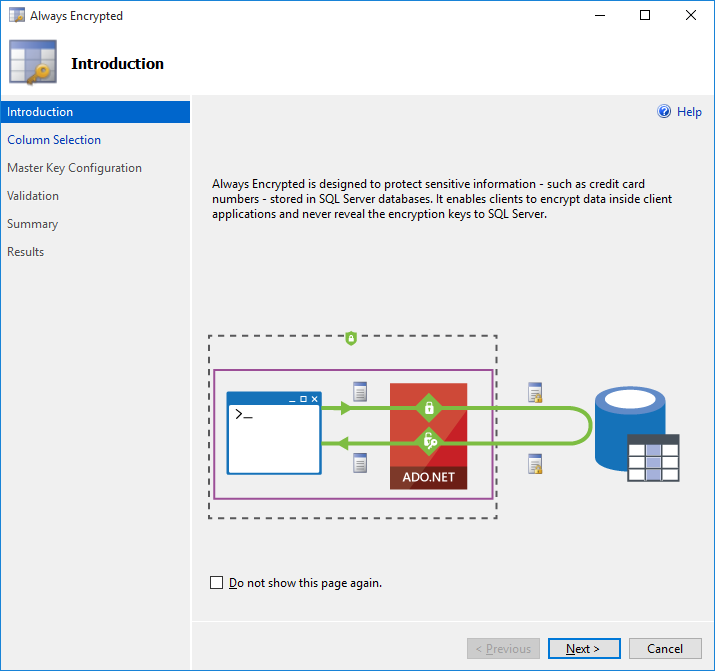
- Select the SSN and BirthDate columns.
- Select Deterministic Encryption for SSN as the application needs to be able to search patients by SSN; Deterministic Encryption preserves that functionality for our app without leaving data exposed.
- Select Randomized Encryption for BirthDate
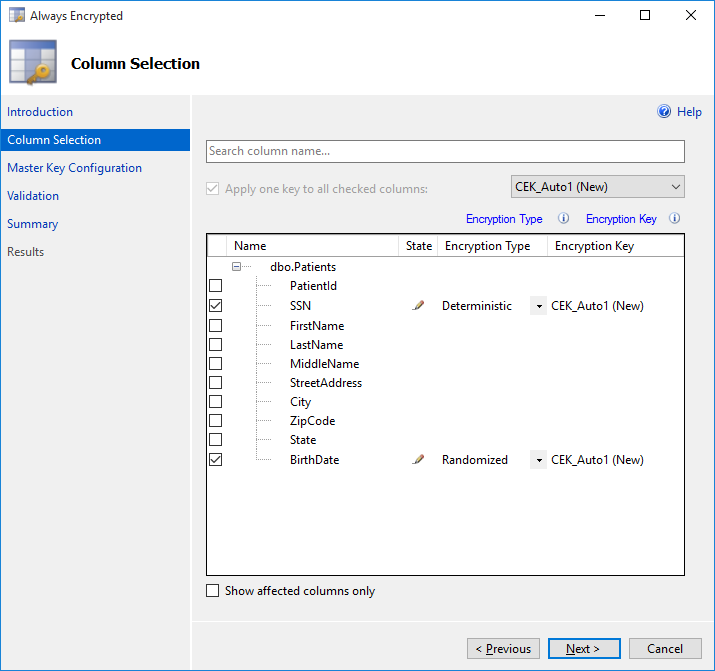
- Leave CEK_Auto1 (New) as the Key for both columns. Click Next.
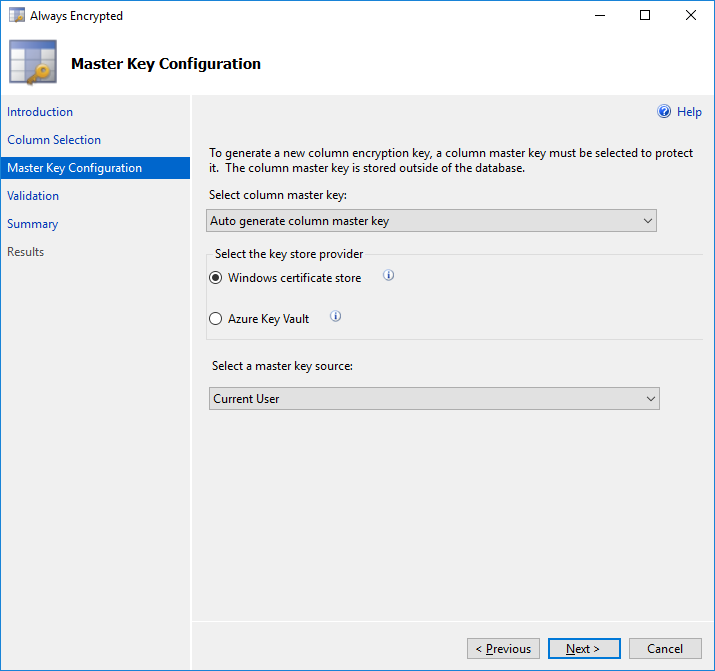
- On the Master Key Configuration page, the Master Key Source should default to to Windows Certificate Store, with the Master Key Source defaulted to Current User. (This will store the key on your local machine.)
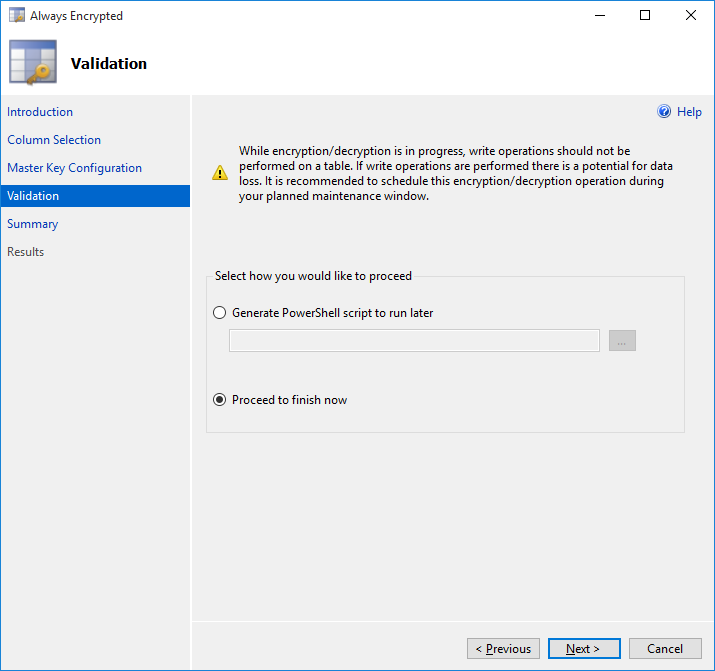
- Click the Next button on the Validation page.
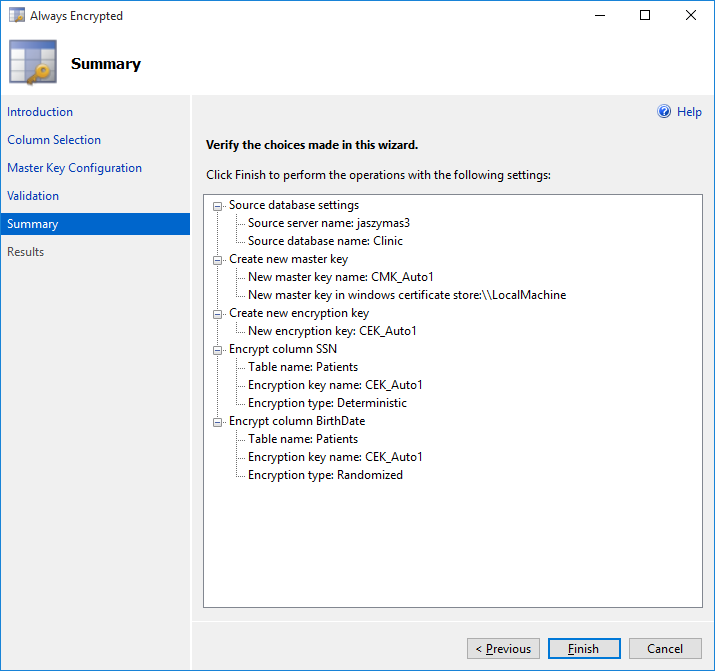
- The Summary Page provides an overview of the settings we selected. Click Finish.
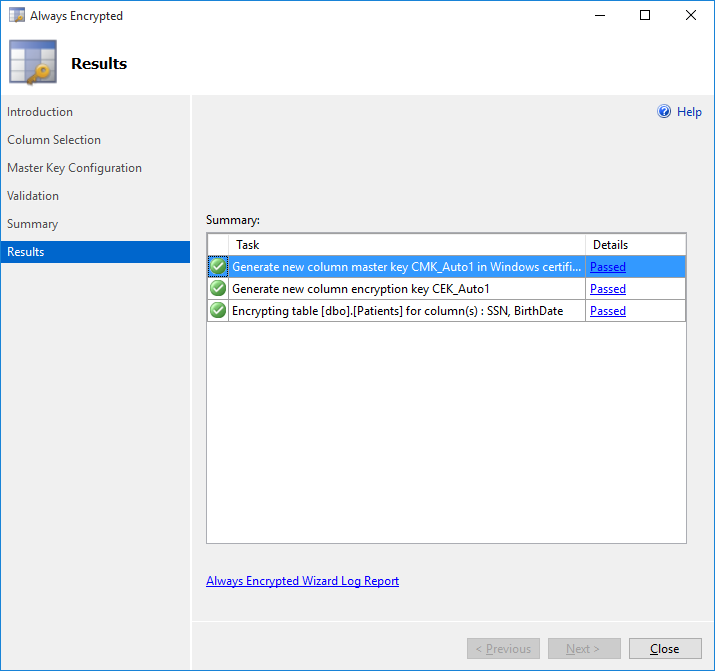
- Monitor the progress of the wizard; once finished, click Close.
- Right click on the Patients table in the Clinic database and select Encrypt Columns...
- View the data in SSMS (in SSMS use:
SELECT SSN, BirthDate FROM dbo.PatientsorSELECT * FROM dbo.Patients)- Note that the data is now encrypted on the server for both the SSN and BirthDate columns.
- Navigate to or refresh the /patients page
- Notice that the application now throws an exception.
- This was expected as the application driver does not know how to handle the encrypted data.
- We designed this web app to have a type mismatch, but more flexible webpage design would expose the encrypted value.
- Configure the web app to use Always Encrypted
- Stop the web app (close the window/ or click Stop Debugging)
- Using the Solution Explorer of Visual Studio, locate and open the web.config file under the ContosoClinic project.
- Look for the connection string, and add
Column Encryption Setting=Enabledto the end of the connection string so that it reads like this:
<add name="DefaultConnection" connectionString="Data Source=.;Initial Catalog=Clinic;User ID=ContosoClinicApplication;Password={Some Strong Password};Column Encryption Setting=Enabled" providerName="System.Data.SqlClient" />- Run the ContosoClinic application from Visual Studio (by hitting F5 OR select Debug > Start Debugging)
- Click on the Patients tab. You should see a list of patients again.


How did that work?
Connection String
Our connection string for our application now contains Column Encryption Setting=Enabled which instructs the driver to automatically encrypt parameters targeting encrypted columns and decrypt any results retrieved from encrypted columns, without code changes. Don't forget this for your app if you intend to use Always Encrypted functonality. For more information this feature, see our blog.
Row Level Security (RLS)
Login to the application
Sign in using (Rachel@contoso.com/Password1!) or (alice@contoso.com/Password1!)
Enable Row Level Security (RLS)
- Connect to your database using SSMS: Instructions
- Open Enable-RLS.sql ( Find it here)
- Execute the commands
- Observe the changes to the results returned on the /visits or /patients page
How did that work?
The application leverages an Entity Framework feature called interceptors
Specifically, we used a DbConnectionInterceptor. The Opened() function is called whenever Entity Framework opens a connection and we set SESSION_CONTEXT with the current application UserId there.
Predicate functions
The predicate functions we created in Enable-RLS.sql identify users by the UserId which was set by our interceptor whenever a connection is established from the application. The two types of predicates we created were Filter and Block.
- Filter predicates silently filter
SELECT,UPDATE, andDELETEoperations to exclude rows that do not satisfy the predicate. - Block predicates explicitly block (throw errors) on
INSERT,UPDATE, andDELETEoperations that do not satisfy the predicate.
Dynamic Data Masking
Enable Dynamic Data Masking
- Navigate to the /patients page
- Connect to your deployed database using SSMS: Instructions
- Open Enable-DDM.sql (Find it here)
- Execute the commands
- Observe the changes in results returned on the /visits page
How did that work?
Dynamic data masking limits sensitive data exposure by masking the data according to policies defined on the database level while the data in the database remains unchanged; this is based on the database user's permissions. Those with the UNMASK permission will
have the ability to see the data without masks. In our case, the application's database login did not have the UNMASK permission and saw the data as masked. For your administrator login, the data was visible, as the user had the UNMASK permission. For more information on Dynamic Data Masking, see the documentation.
Application Notes
The code included in this sample is only intended to provide a simple demo platform for users to enable and gain experience with SQL Server 2016 security features; the demo web app is not intended to hold sensitive data and should not be used as a reference for applications that use or store sensitive data. Please take adequate steps to securely develop your application and store your data.